In this support article, we will show you how to initially set up your account on the BrokerageBox platform. We have simplified the onboarding process so that you can hit the ground running! All of these settings can be changed at a later time.
Sign Up at BrokerageBox.com
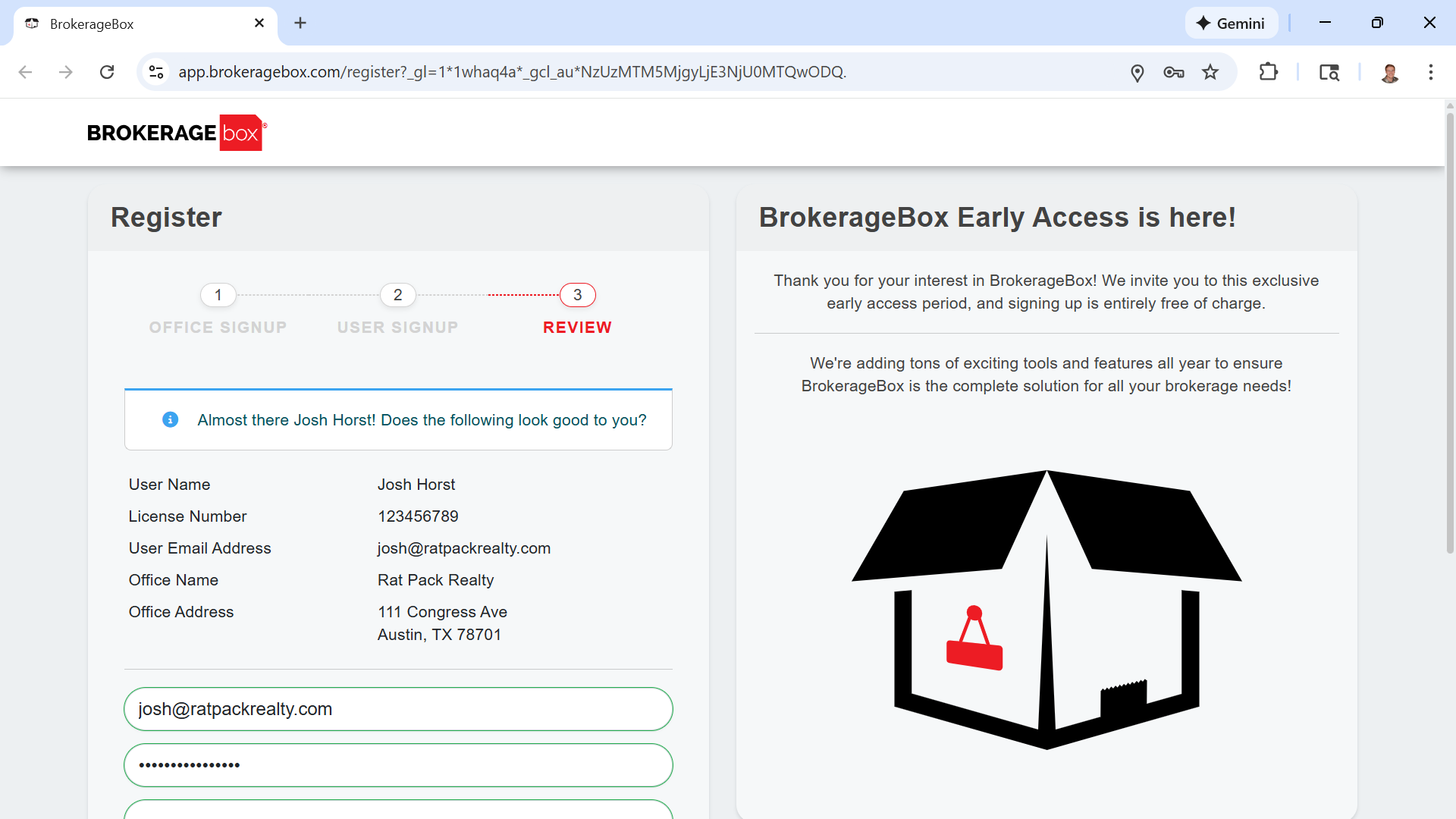
From the BrokerageBox home page, click "Sign Up", found in the upper right hand corner of the website. Here, you can sign up as a brokerage owner, or as a solo agent. Enter information for your brokerage, review, then click submit.
Enter Brokerage and Branding Information
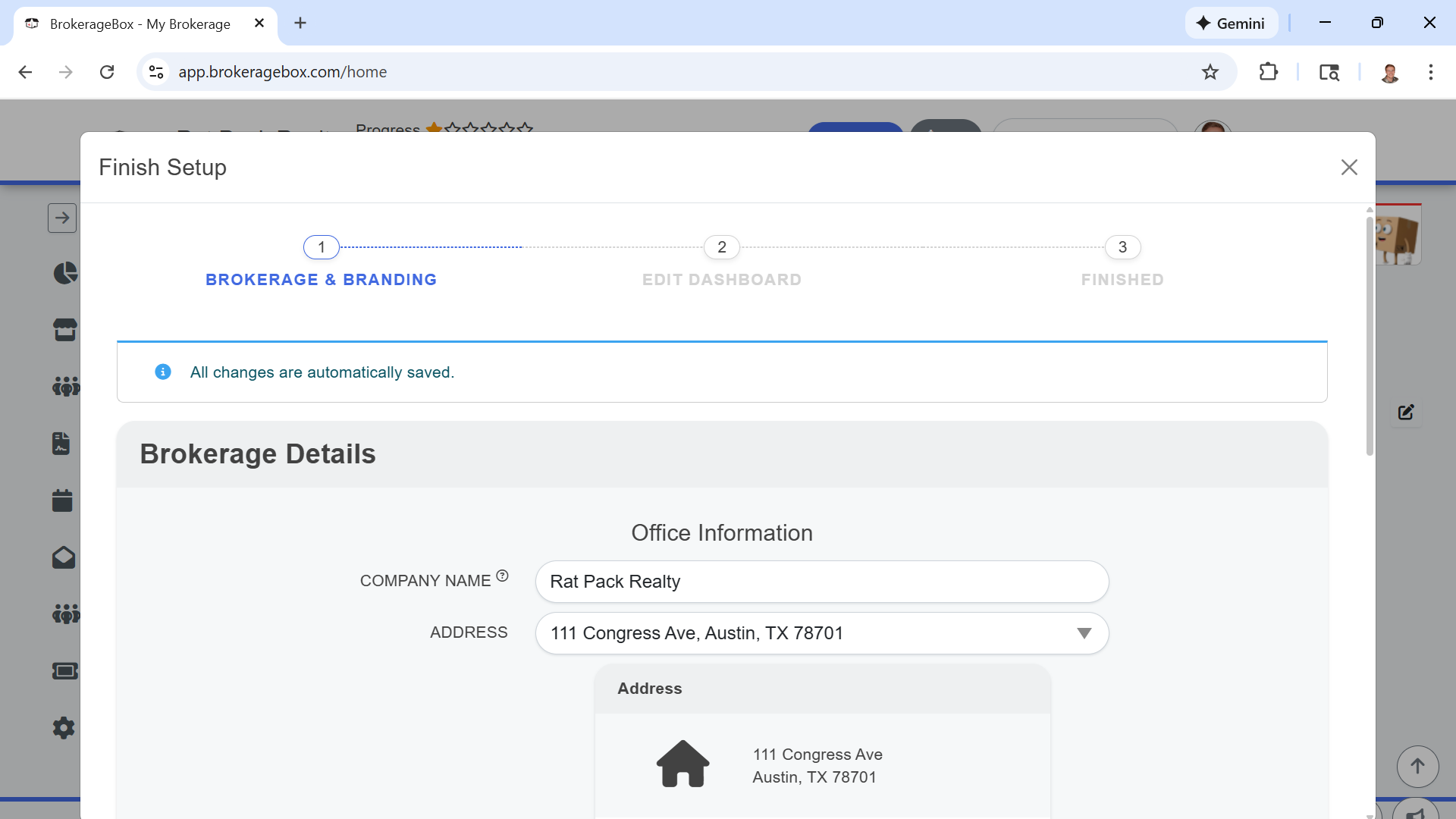
Enter information for your brokerage and customize your app. You can customize the primary and secondary colors of your app, name the platform, create a custom web slug, and more.
Edit Your Brokerage Dashboard
Click the right arrow to start the edit dashboard wizard. Proceed through the questions and add links to set up your home dashboard for you and your agents. This dashboard will be presented front and center when your agents log in to the app. You can edit these icons at any time from the home page.

Add Compensation Plans
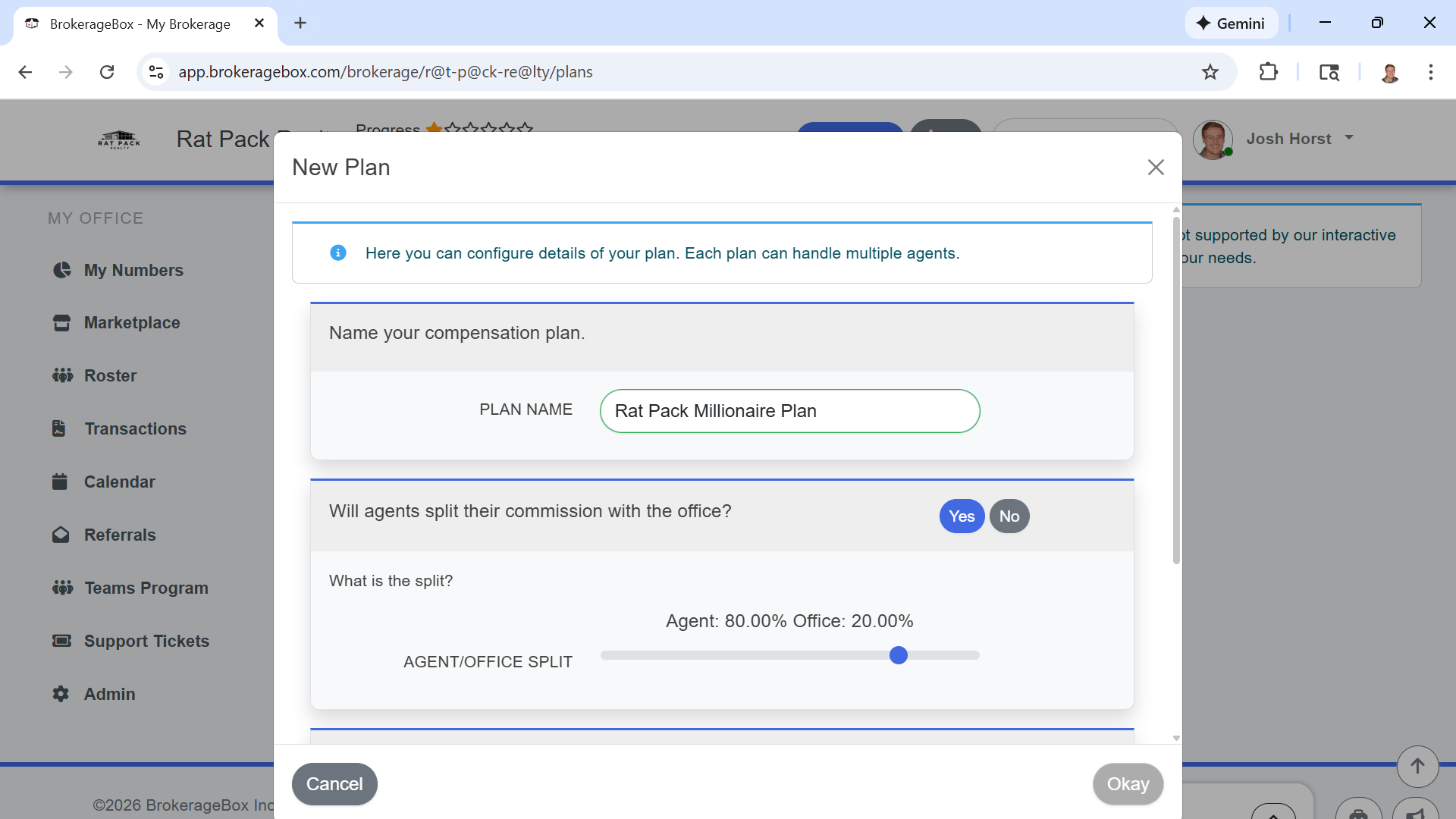
Add compensation plans for your agents by click the add plan button in the top right hand corner of the screen. Complete the wizard to edit details about the plan. Don't worry about adding users to your compensation plans yet; this will be done in the following sections.

Add Offices
Add additional office locations to your BrokerageBox platform. These offices will be separate from the one you created when you signed up. You will be able to toggle between each of these offices from the upper right hand corner drop down menu from the app.

Add Agents to Offices
Add and invite members from your team to the BrokerageBox platform. You can define whether each member is "staff" or an "agent". Staff members will have unique permissions that will allow them to perform document review by default.
When you click Save and Send Invite button after completing the Invite Member form, an email will automatically be sent to the agent.

Create Document Review Checklist
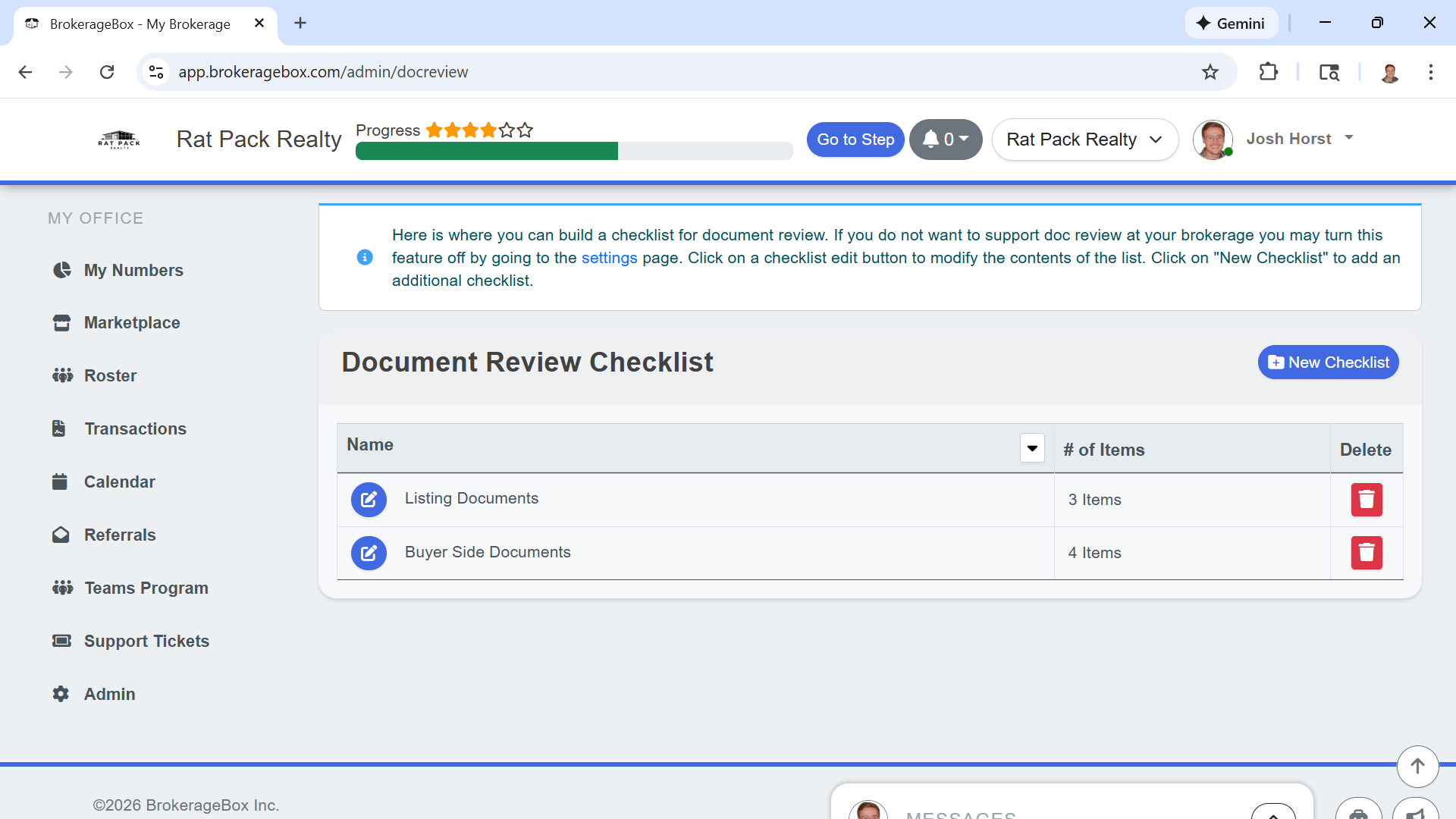
Create your document review checklist to specify which documents agent must upload for a compliant transaction. As the owner, you can update this checklist at any time from the admin section after initially setting up your account.
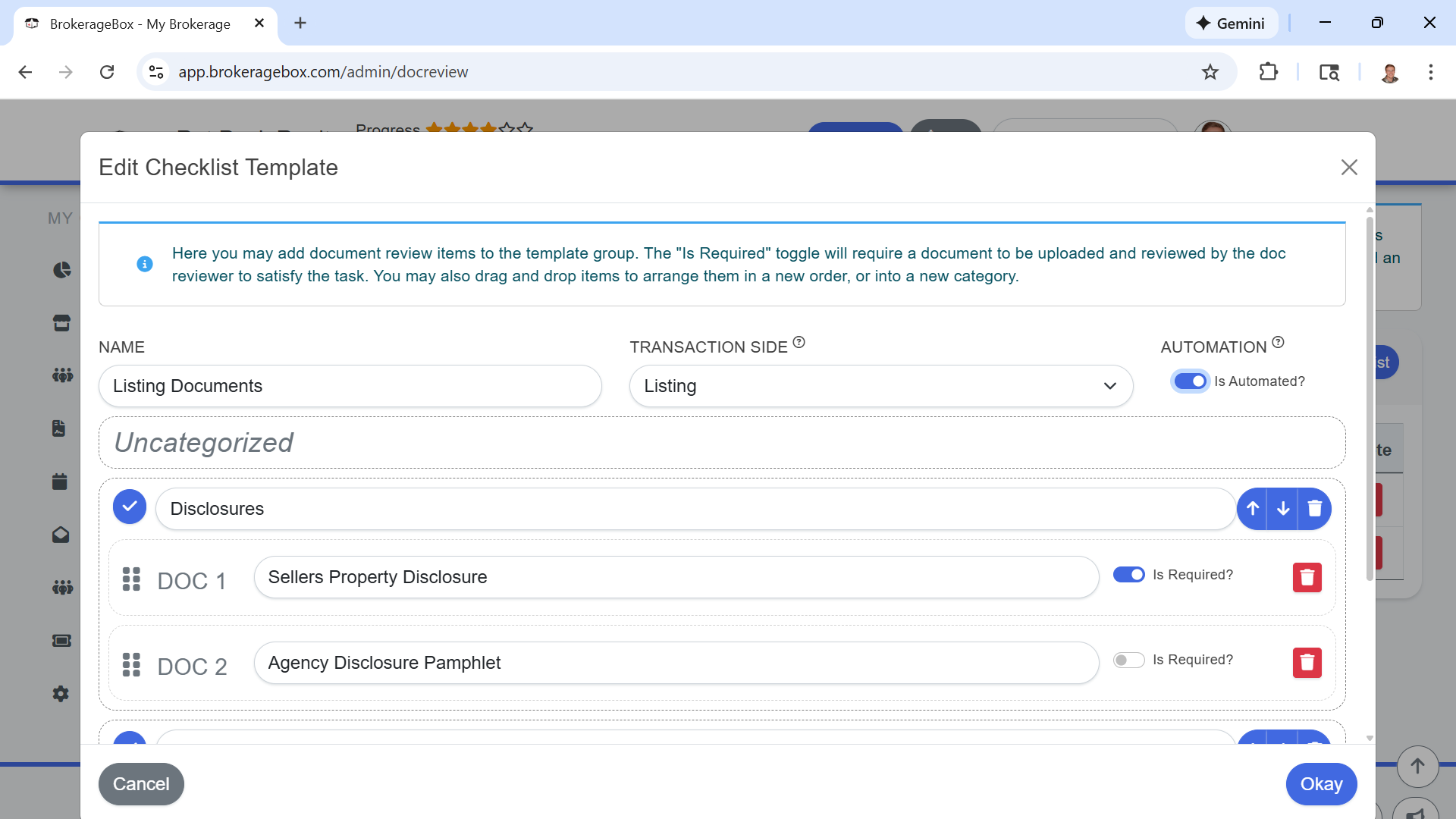
Document sets are differentiated by listing or sale documents, referring to a listing transaction (sellers agent) or sale transaction (buyers agent or listing sold). These document sets will automatically populate into each new transaction under the Document Review section.
Within the document set, you can create document items and categorize them based on your brokerage's or regional requirements. When you create a document item, you can set it as required or not. When an agent creates a transaction, they will upload their fully-signed offer, and your transaction coordinator will split the offer into its appropriate document items, and drop them into the appropriate section for individual review.
See our Transaction Management page for more information, or read our support articles How to Create a Listing Transaction and How to Create a Sale Transacting for an inside look into the transaction process.
Add Bank Account for Direct Deposits
The final step is to add your payment processing account to the BrokerageBox platform. You can also set up your payment processing account at a later time by following the instructions in our support article How to Set Up Payments.
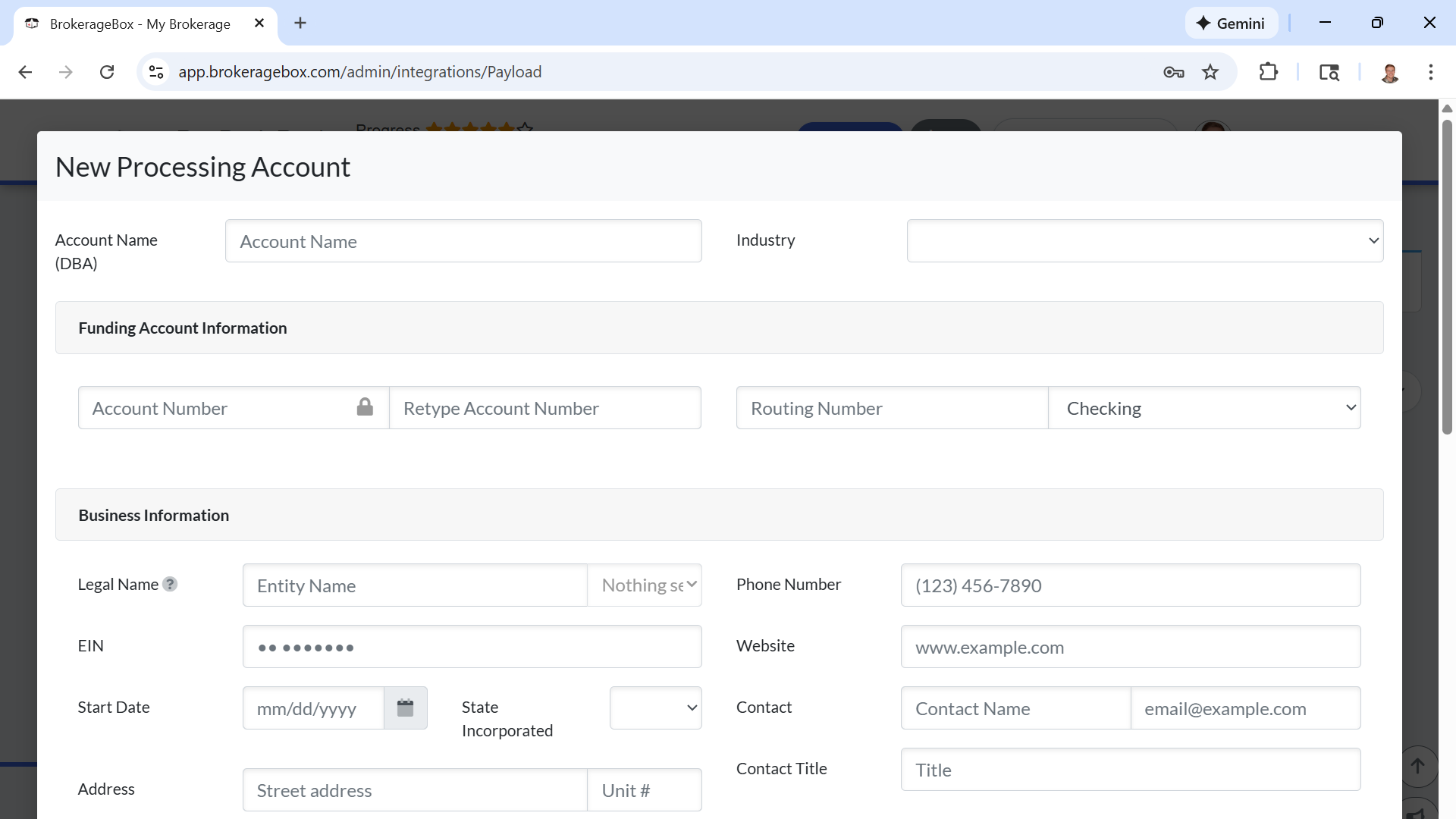
You can choose either operating account or commission account. Operating accounts are used for daily operations of the business, i.e., collecting payments from Marketplace sales, or monthly billing. The commission account should be used solely to pay agents commissions. You can one or both accounts on the BrokerageBox platform.
When you attempt to add a bank account, you will be presented with a form where you enter your business account information. You must input all the data accurately. This form will be sent to our third-party payment processing platform Payload, which will contact you externally to complete account set up. Allow up to 3 days for Payload to contact you.
This account set up will only be required by the brokerage owner. When agents wish to add their bank account information, they will be presented with a simpler form, and added to the primary Payload account where they can receive and send payments.

Complete Account Set Up
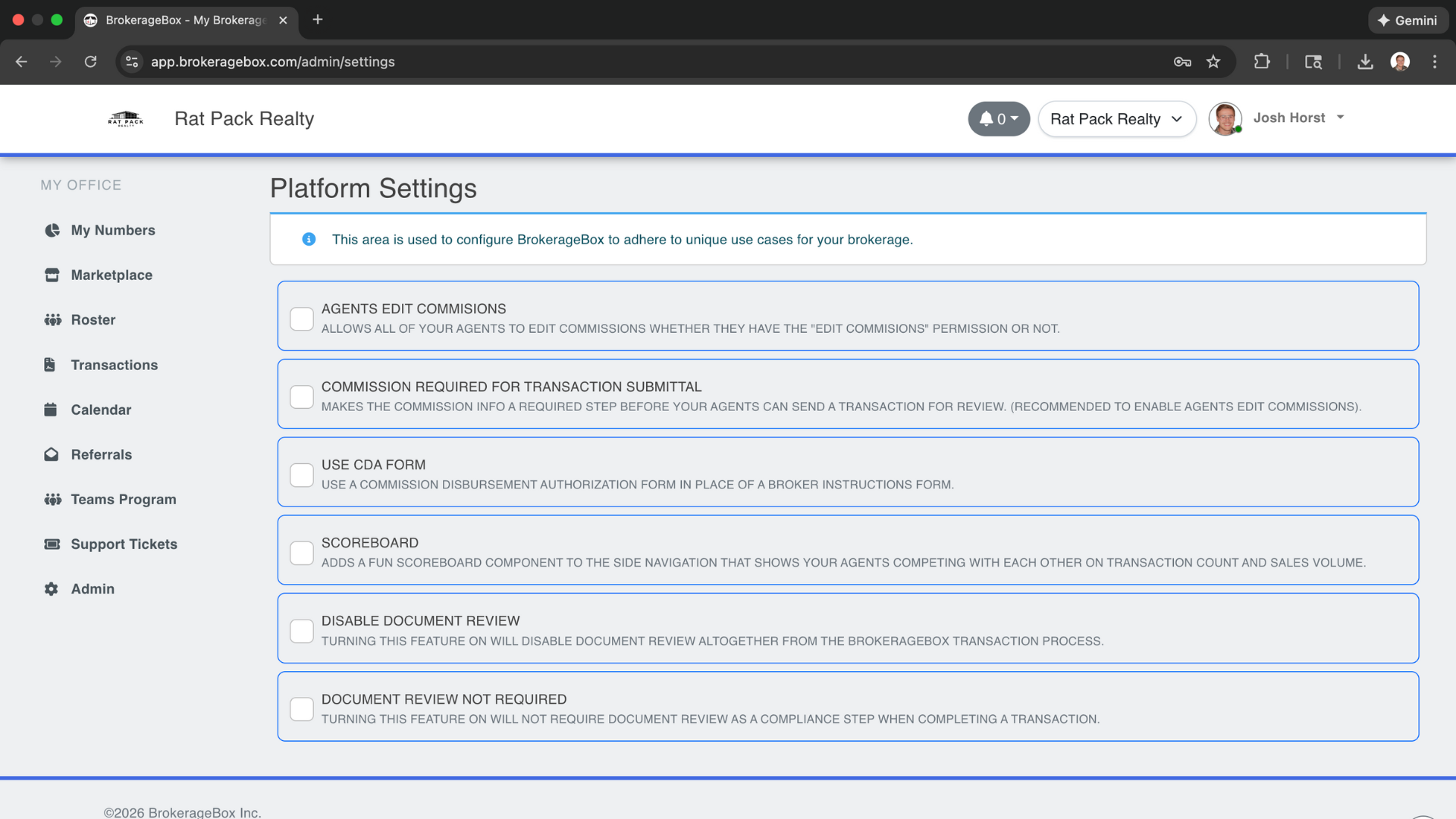
Woohoo! Account set up is complete. But, there's more. If you missed an onboarding step or want to further customize your app, you can do this in Platform Settings within the Admin section, shown on the bottom left hand side of the screen. See the image below for platform settings options.