
In this support article, we will show you how to set up your payment processing account for direct deposits, and credit card charges. This article will be split into two sections: one for setting up the primary processing account by the brokerage owner, and the other for adding credit cards and bank account information by each agent.
Adding Primary Payment Account For Brokerage Owner
The first step to enabling payments through the BrokerageBox app is for the brokerage owner to set up the primary processing account. Once this is complete, then agents can add their credit or debit cards. If you are an agent, then proceed to the Adding Payment Account for Agents section below.
Go To Marketplace
You will have the opportunity to add your payment processing during initial account set up and onboarding. If you did not set up payments at this time, then go to the Marketplace module to access the link to set up the primary payment processing account. Click the link in the text box towards the top right hand corner of the screen to get started.

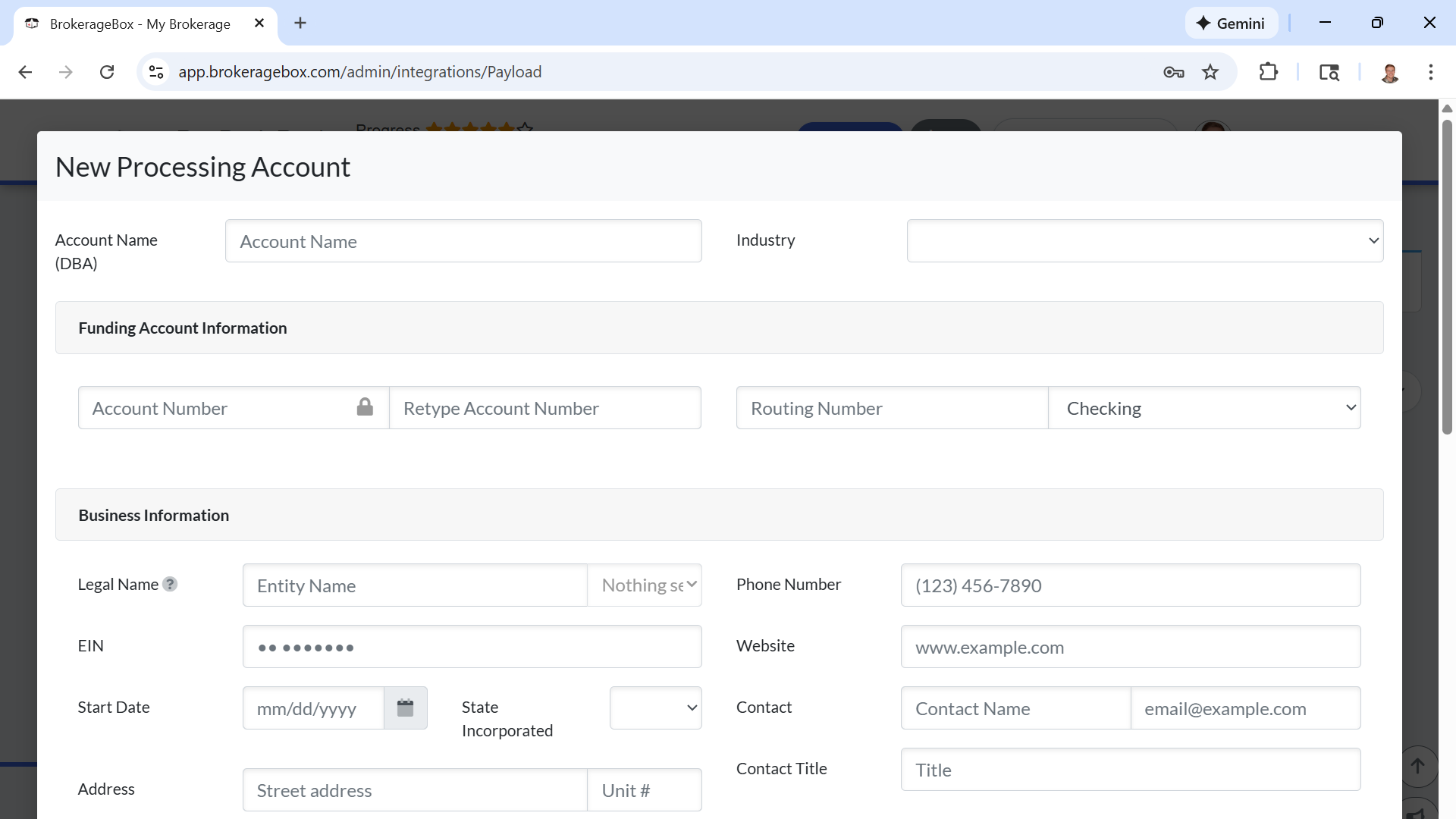
Enter Information in the Payment Account Form
You will be presented with the option to set up either an operating account or commission account. Operating accounts are used for daily operations of the business, i.e., collecting payments from Marketplace sales, or monthly billing. The commission account should be used solely to pay agents commissions. If you are sending commission payments via physical check or if agents receive commission payments directly from the a company via a CDA (commission disbursement authorization), then you will select operating account. You can add one or both accounts on the BrokerageBox platform.
This detailed account set up will only be required by the brokerage owner. When agents add their credit card and bank account information, they will be presented with a simpler form, and be added to the primary Payload account where they can begin receiving and sending payments immediately.
If you do not have a registered business, then select sole proprietorship as the business type. Enter your full name as the legal name of the business, your SSN as the EIN number, and use your personal home address.

Wait Up to 3 Days for Payload Integration Processing
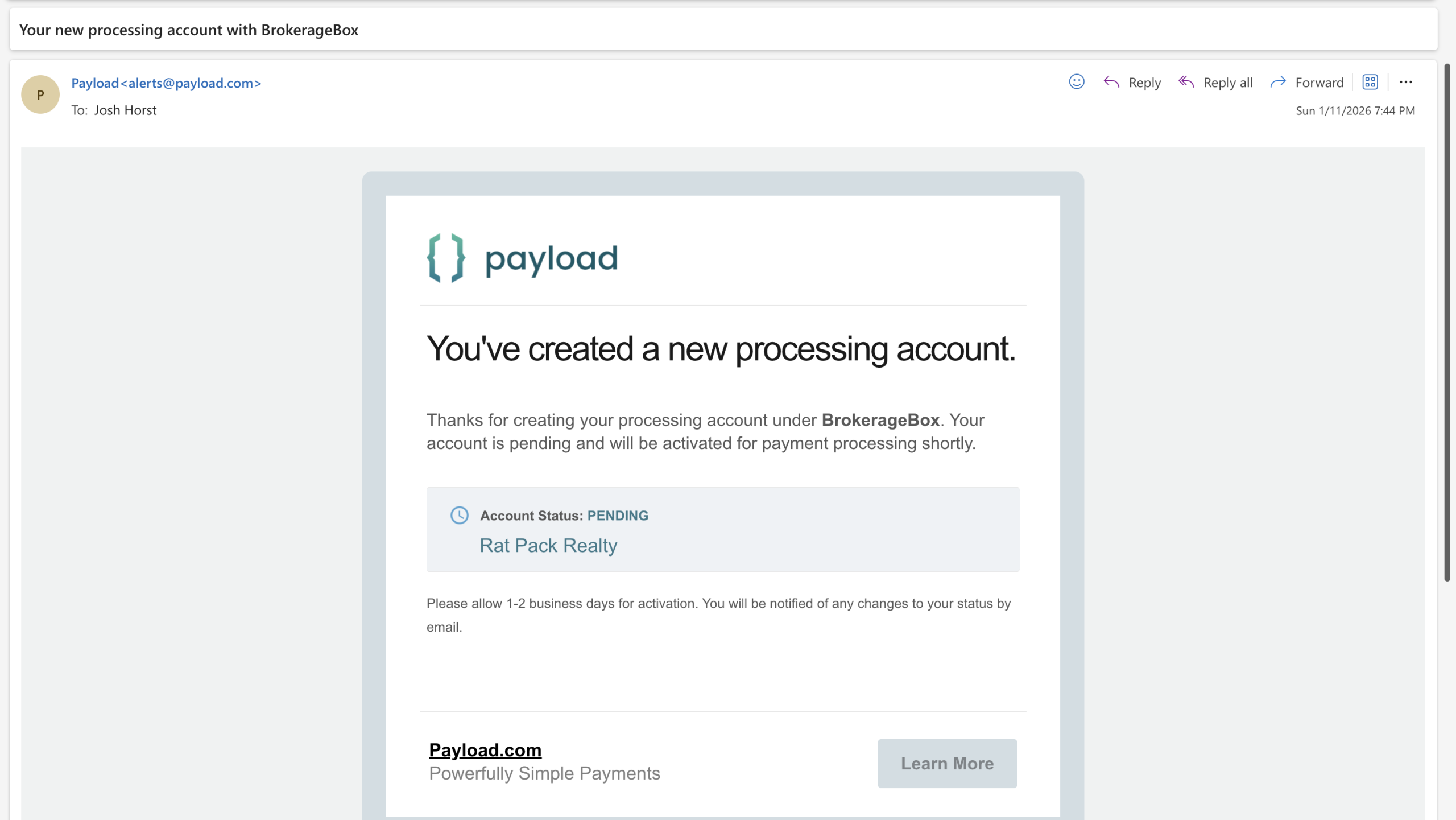
The previous form will be sent to our third-party payment processing platform Payload, which will contact you externally to complete account set up. Allow up to 3 days for Payload to process your account.
It's imperative that you enter all of the information accurately. If there is a mistake in your application, then a representative from Payload will contact you in a separate email to update your information.
Payload Account Integration is Active
After your payment processing account has been successfully activated by Payload, you will see a confirmation from the Integrations page found in the Admin section.

View Billing Dashboard
Now that your payment account is set up, you can view your billing dashboard from the Billings page within the Admin section. Here, you can view all accrued fees for the month, your subscriptions (monthly billing from agents), agent invoices for those subscriptions, and a preview list of active agent credit cards and bank accounts.

Adding Payment Account for Agents
As an agent, you will have the options to add credit cards for payments (money sent), and banks accounts for commissions (money received). You may disregard this tutorial if you are not sending payments through the app or are receiving commission payments via physical check or directly from your title company via a CDA (commission disbursement authorization).
Add Credit Card for Monthly Billing and Marketplace Purchases
Go to the My Profile page located in the drop-down menu in the upper right hand corner of the BrokerageBox app.
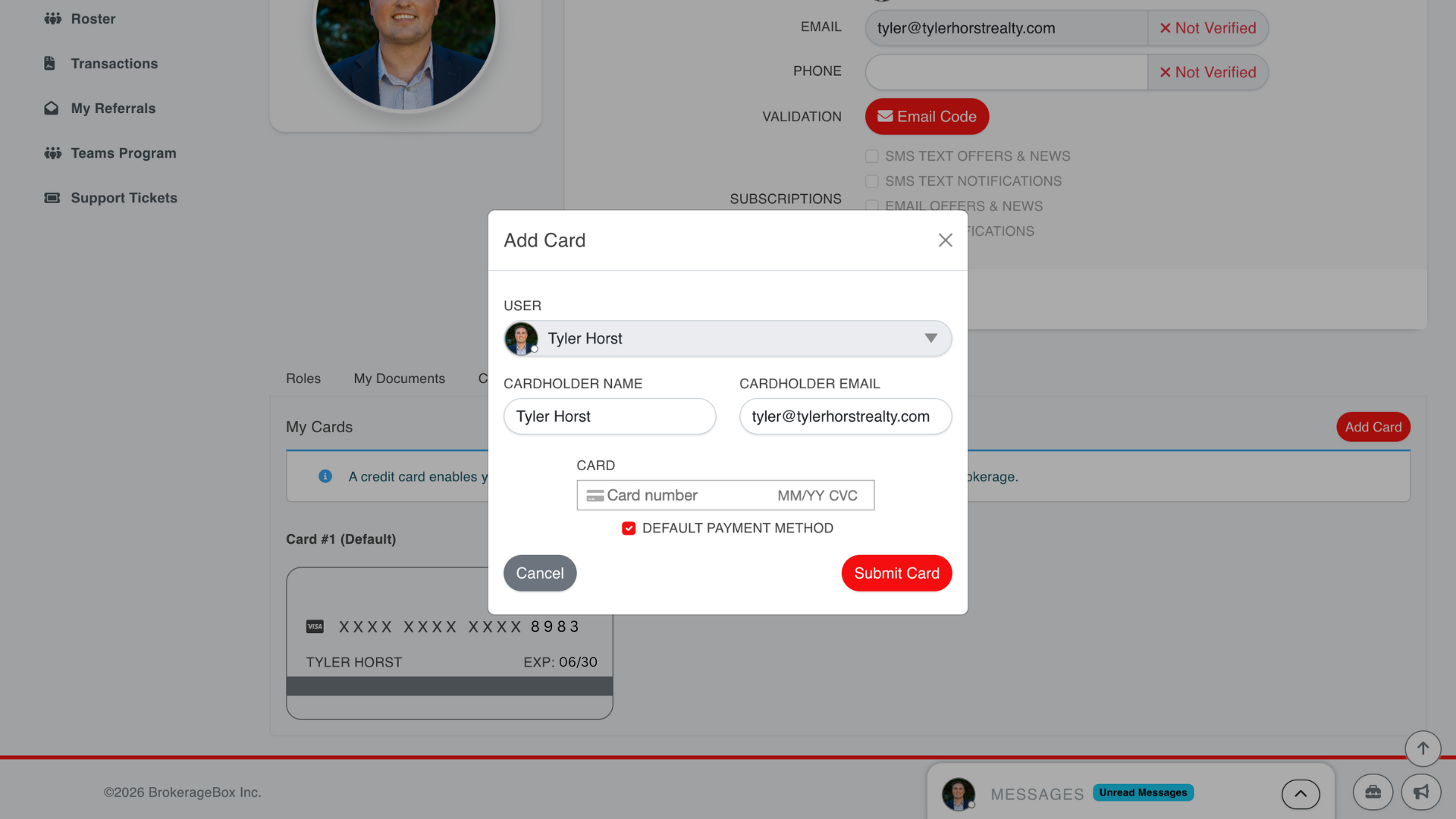
Go to the Credit Card tab towards the bottom of the page, and click the "Add Card" button. Select default payment method if this is the credit card you'd like to use for monthly billing or marketplace purchases within your brokerage, if applicable. Enter your credit card information and click submit.
Add Bank Account for Receiving Commissions via Direct Deposit
Go to the My Profile page located in the drop-down menu in the upper right hand corner of the BrokerageBox app.
Go to the Bank Account tab towards the bottom of the page, and click the "Add Bank" button. Enter your bank account information and click submit. This is the account that you will receive your commission payments via direct deposit.

View Past Purchases from Marketplace
You can view all purchases from the Marketplace module by navigating to the My Purchases page located in the drop-down menu in the upper right hand corner of the BrokerageBox app. The Marketplace module enables agents to purchase items within their brokerage.


