
In this support article, we will show you how to set up the marketplace module within the BrokerageBox platform. The marketplace module enables brokerage owners to sell generic items, and track their inventory. Examples of items include directional signs, one-time software purchases, branded apparel, etc.
Set Up Marketplace as Brokerage Owner
Go to Marketplace
Go to the marketplace module by clicking Marketplace on the main navigation menu on the left hand side of your screen. You must first enable marketplace by setting up your payment processing account. Click the link in the info blurb to open the payment processing registration page.
For detailed instructions on setting up payments, visit our support article How to Set Up Payments on BrokerageBox. Once this is complete, then agents can add their credit or debit cards for purchasing items in the marketplace module.

Go to Marketplace Editor
Once you have marketplace enabled, you can access the marketplace editor by navigating to Admin > Marketplace Editor. On this screen, you can view or edit all items that you've listed for sale within your brokerage, and track inventory. Only the brokerage owner will have access to this editor.
As agents purchase items in the marketplace module, the brokerage owner and office manager will receive a notification via email, and the inventory number will automatically change. When inventory reaches 5, the remaining inventory will display as yellow with a warning symbol. When inventory reaches 0, it will display as red and sold out.

Add New Product
Click the button Add New Product in the upper right hand corner of the marketplace editor screen. Here, you can add a title, price, description, inventory, and an image to your item. If you'd like to turn off inventory tracking, or inventory is practically infinite, then select Is Infinite for inventory.

Manually Charging Agents
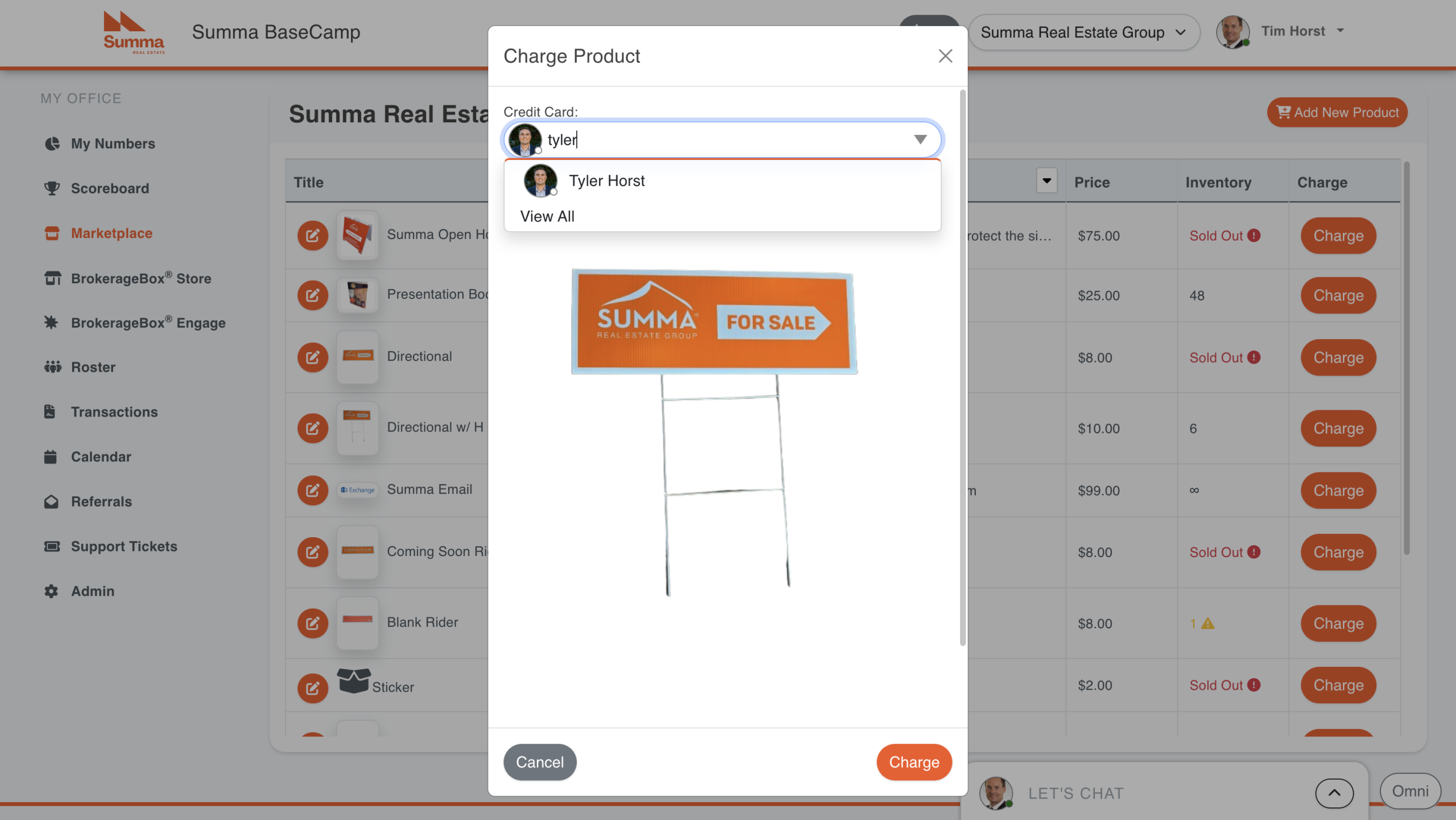
If you'd like to manually charge agents from the brokerage owner dashboard, you can do so by clicking the Charge button on any item. You will be presented with the following screen to select an agent, and input the quantity to charge. For some browsers, you may need to scroll down on the pop up window to input a quantity. After you click Charge, it will charge the agents default credit or debit card.
Purchase Items From Marketplace as an Agent
Go to Marketplace
After enabling marketplace as the brokerage owner, agents will have access to the marketplace module. As an agent, go to the marketplace module to view the main dashboard for purchasing items. Before purchasing items, agents must have their credit or debit card stored on the platform. For instructions to set up payments as an agent, read our support article How to Set Up Payments on BrokerageBox.

Purchase Item
As an agent, click on one of the items to view its detailed information. Here, you can select the quantity you'd like to purchase, and add to your shopping cart. You can buy multiple items at a time to your shopping cart. The software will automatically prevent you from buying items that are out of stock. Click Purchase to initiate the transaction, and then you will be presented with a confirmation window.

View Marketplace Orders as an Agent
As an agent, you can view your marketplace orders by navigating to My Profile > My Purchases from the drop down menu in the upper right hand corner of the screen. If the payment failed for whatever reason, the order record will show as Not Paid.


