
Overview
BrokerageBox is the operating system and digital twin for your real estate brokerage. As the brokerage owner, you are responsible for inviting your agents into the platform so they can their upload transactions.
Go to Roster to Invite Agents or Staff
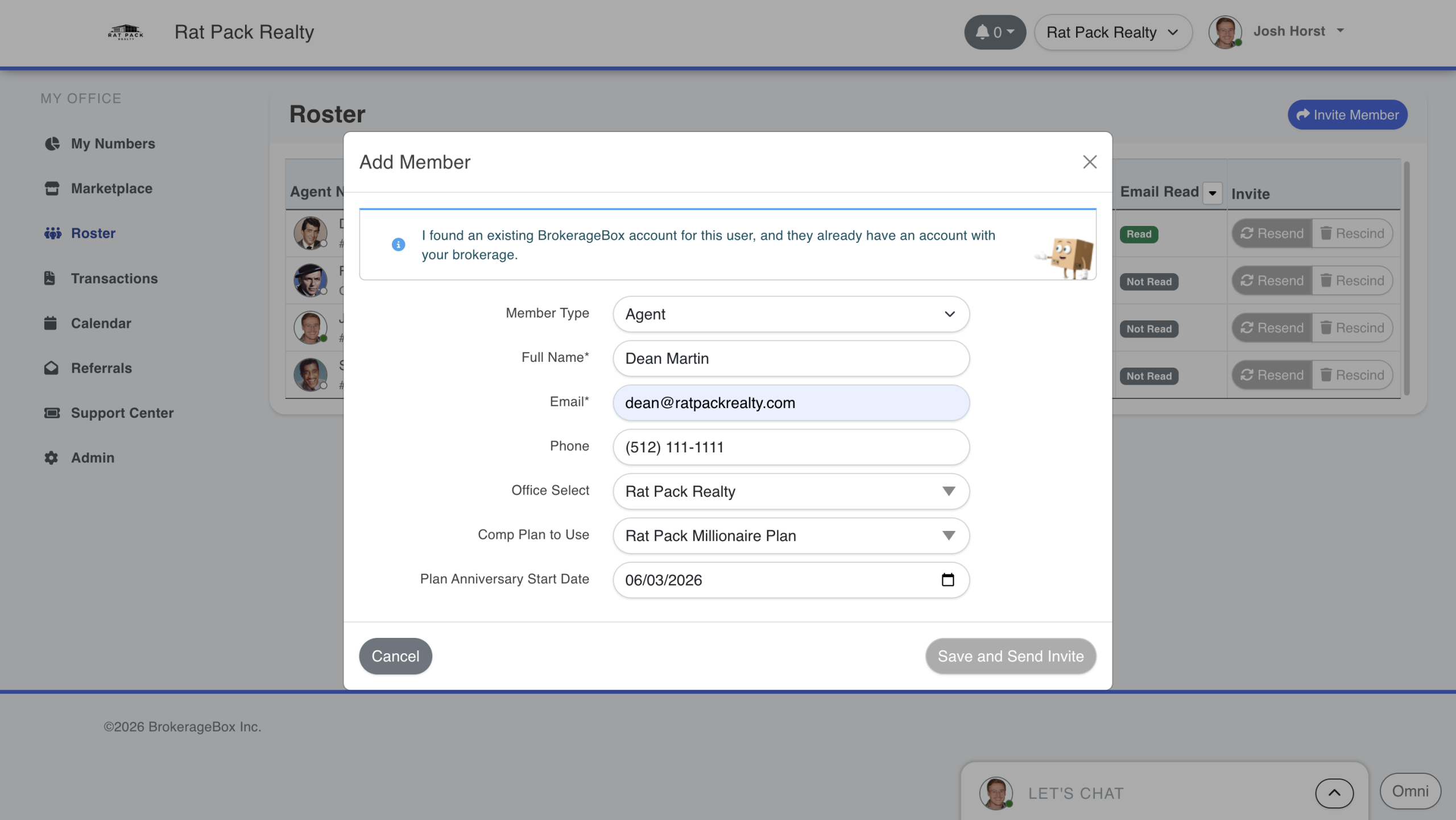
From the brokerage owner dashboard, click Roster to view a list of your agents from your brokerages. Click Invite Member to enter the information for your agent of staff member.
Select staff for office managers, transaction coordinators, or anyone else that helps manage your brokerage. This category of persons will have unique permissions to edit all office transactions, similar to the brokerage owner. To edit user permissions, go to Admin > Permissions.
Enter Information to Invite Agent or Staff
Enter the relevant information for your agent or staff member. Click the Save and Send Invite button to invite them into the brokerage.
Agent Receives Invite via Email
Your agent will receive a notification similar to the one below. It will be branded with your logo and colors as set by you. To edit your branding, go to Admin > Brokerage Details. Have your agents click the Join button in the email to finish setting up their agent dashboard.

Go to My Offices for a More Detailed View of Your Roster
For a more detailed look at your office roster, go to Admin > My Offices, select your brokerage, and then click Office Roster. This view will give you a list of your office members categorized by agent or staff. You can also invite members to your office from here in the same fashion as above.


