
Overview
BrokerageBox enables agents to upload a full-signed offer or its individual components to their transaction that will be reviewed by office staff or your brokerage owner in the future. All transactions live in the Active Pipeline category until you have a full-signed offer. Once you submit a transaction for document review, it will move to the Listing or Pending Sale category.
For a more detailed look at the transaction management process, go to our support articles How to Create a Listing Transaction in BrokerageBox and How to Create a Sale Transaction in BrokerageBox.
Edit Active Pipeline Entry
From the agent's dashboard, click the Edit button on a transaction in your Active Pipeline. The Attached Files section is only for review of pre-transaction documents, such as a buyer's representation agreement. You may skip this section by clicking Continue. Consult with your brokerage owner about their policy for starting a transaction.
Add Information to Your Active Pipeline Entry
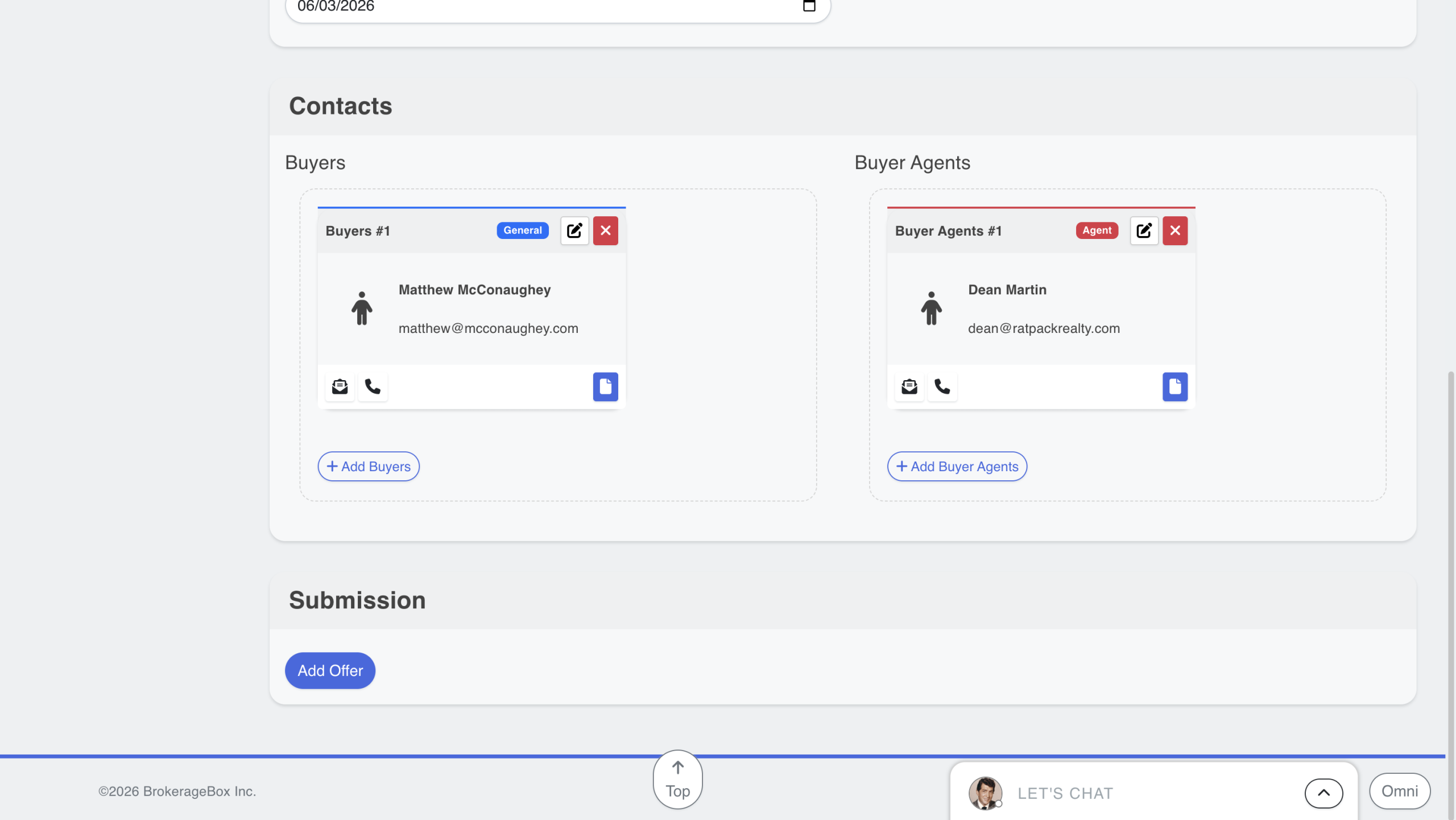
Next, you will enter information relevant to the transaction. Verify that the contact information is correct, then click the Add Offer button.

Upload Offer to Your Transaction
After clicking Add Offer, scroll down on the transaction page to the File Upload section, and click the Upload button to attach your full-signed offer. Alternatively, you can upload the individual components of the fully-signed offer to get a head start on the document review process. See the section below to learn more.
All documents uploaded to your particular transaction will live in the OmniSearch File section. Please review the section below for a preview of our OmniSearch tool.
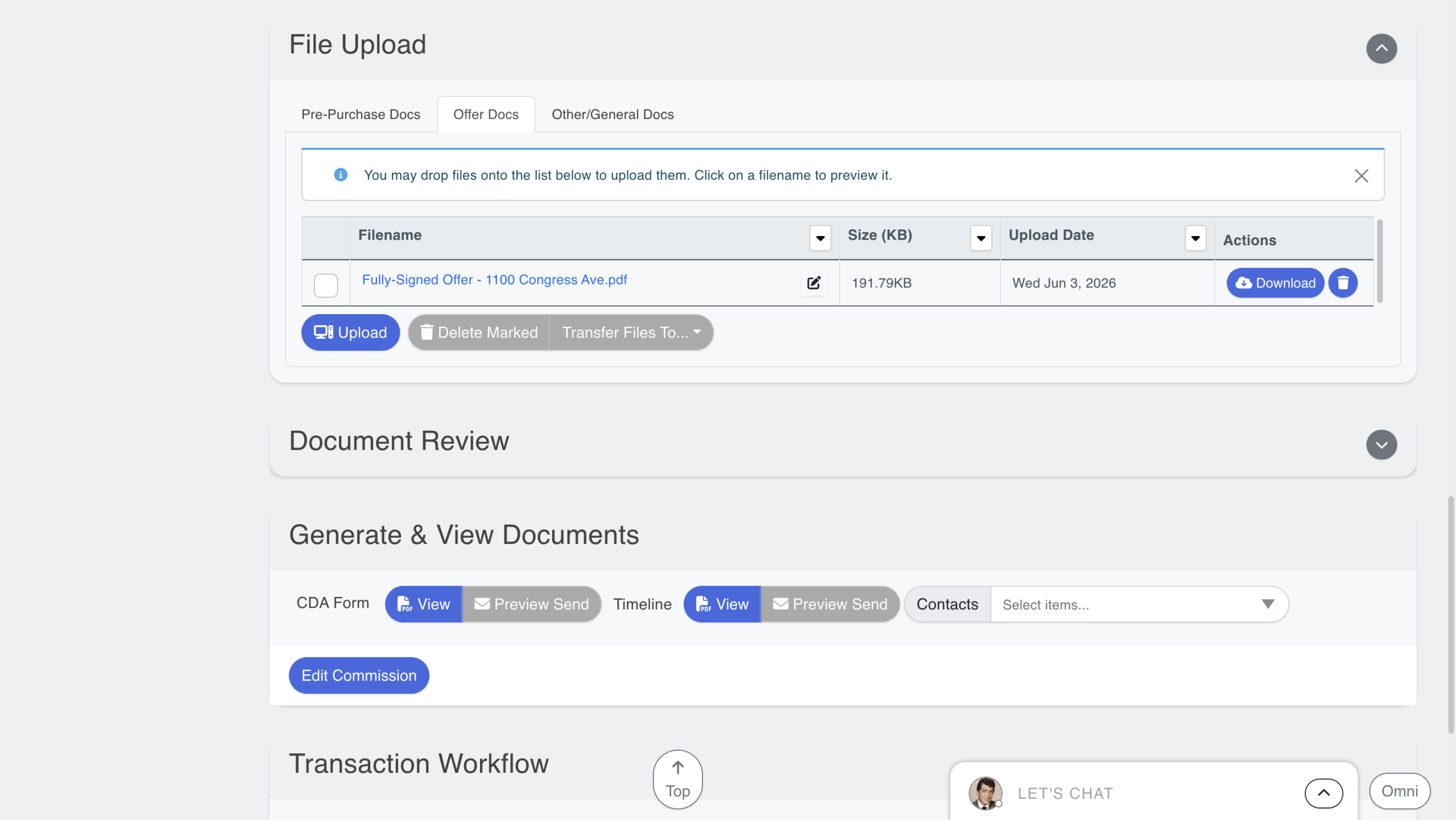
Alternatively Add Documents to Document Review Section
Alternatively, you can add your individual offer documents to the Document Review section using our OmniSearch tool. Click the Drop File(s) Here button or the briefcase in the lower right hand corner of your screen to open OmniSearch. Click the Files section, then upload your offer docs. You can drag-and-drop each document into the appropriate document review item and category.
This will help your transaction coordinator or brokerage owner get started with breaking up your full-signed offer into its individual components for document review. Consult with your brokerage owner on their policy for uploading transaction documents.
If there is no document review checklist populated yet, direct your brokerage owner to create one from their admin dashboard using our support article How to Add Document Review Checklist.
Submit Fully-Signed Offer for Document Review
Finally, scroll down and click the Submit Fully Signed Offer for Review Button at the bottom of the page. This will send your office manager or brokerage owner an email to start a document review.
At this point, your transaction will live in the Listing or Pending Sale category. It will be presented with a yellow dot, indicating that the transaction is ready for review. For more information about our DotView indicator system, read our support article What do the Dot Indicators Mean in a Transaction.


